Downloading Python for Mac Easily: A Step-by-Step Guide
If you’re venturing into the world of programming, Python is an excellent choice. Its readability and simplicity make it a favorite among beginners and experts alike. For Mac users, downloading and installing Python might seem straightforward, but there are a few key points to ensure a smooth installation. This guide is crafted to walk you through the entire process, with actionable advice and real-world examples to help you get started with Python on your Mac.
One of the most common hurdles you might encounter is ensuring you're downloading the correct version and setting up Python correctly on your Mac. This guide will solve these problems, offering you a clear path to install Python and get it running on your machine.
Quick Reference
Quick Reference
- Immediate action item: Visit the official Python website for the latest version.
- Essential tip: Download the installer directly from the official Python website to avoid security risks.
- Common mistake to avoid: Do not download third-party software that may bundle unwanted software.
Let’s dive deeper into each step to make sure you get Python installed and running with minimal hitches.
Step-by-Step Guide to Download Python for Mac
Step 1: Visit the Official Python Website
To ensure you are downloading the most secure and up-to-date version of Python, start by visiting the official website. Here’s what to do:
- Open your preferred web browser and go to python.org.
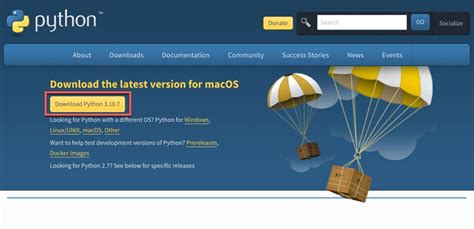
- Navigate to the Downloads section. On the homepage, you will see a “Downloads” button prominently displayed.
- Select the macOS version. You’ll see options for different platforms. Make sure to select the version suitable for macOS.
Step 2: Download the Python Installer
Once you’ve selected the correct version, it’s time to download the installer.
- Click the “Download Python X.X.X” button for the latest version. This action will start the download of the installer.
- Save the file to a location on your Mac that’s easy for you to find, such as the Downloads folder.
Step 3: Run the Installer
With the installer downloaded, you’re ready to install Python.
- Locate the downloaded installer in your Downloads folder.
- Double-click the installer to run it. This will launch the installation process.
- Follow the on-screen instructions. The installer will guide you through the installation process, including agreeing to the terms and conditions.
- Choose the installation location. The default installation location is typically fine, but you can change it if needed.
- Select additional options, such as adding Python to your PATH environment variable. This is recommended to use Python from the command line.
Step 4: Verify the Installation
To ensure Python has installed correctly, you’ll need to verify the installation.
- Open Terminal on your Mac. You can find Terminal in the Utilities folder within Applications, or you can use Spotlight by pressing Command + Space and typing “Terminal.”
- Type the following command and press Enter:
python3 –version. - Check the version that appears in the terminal window. It should match the version you downloaded.
Congratulations! You’ve successfully downloaded and installed Python on your Mac.
Practical Tips and Best Practices
To make the most of your Python installation and ensure smooth sailing in your programming journey, consider these best practices:
- Update regularly: Keep your Python installation up to date by periodically checking for updates on the official website.
- Use virtual environments: To manage different projects with different dependencies, consider using virtual environments.
- Explore Python IDEs: For a more streamlined development experience, explore Integrated Development Environments (IDEs) like PyCharm, Visual Studio Code, or Jupyter Notebook.
Practical FAQ
What if I encounter issues during the installation?
If you encounter issues while installing Python, consider the following steps:
- Check your internet connection to ensure you’re downloading the installer correctly.
- Look for specific error messages in the installation window or terminal output, which may provide clues to the problem.
- Consult the Python documentation for troubleshooting tips specific to your issue.
- Visit forums like Stack Overflow for help from the community, where similar issues might have already been discussed and resolved.
If the problem persists, you may need to uninstall and try reinstalling Python.
Common user question about practical application
If you’re wondering how to start your first Python project, here’s a simple guide:
How do I start my first Python project?
Beginning a Python project can be straightforward. Here’s a simple example to get you started:
- Open a text editor or Integrated Development Environment (IDE) like Visual Studio Code or PyCharm.
- Create a new file and save it with a .py extension, for example,
my_first_script.py. - Write a simple script in Python. For instance, start with “Hello, World!” by typing:
- Run the script in your terminal or command prompt by navigating to the directory where you saved the file and typing:
- Observe the output in your terminal window which should display:
print(“Hello, World!”)python3 my_first_script.pyHello, World!This simple example provides a foundation for understanding Python syntax and running scripts. From here, you can start exploring more complex projects and functionalities.
This guide has provided you with a comprehensive, step-by-step approach to downloading and installing Python on your Mac, along with practical tips and answers to common questions. With Python installed, you’re now ready to embark on your programming journey. Happy coding!